
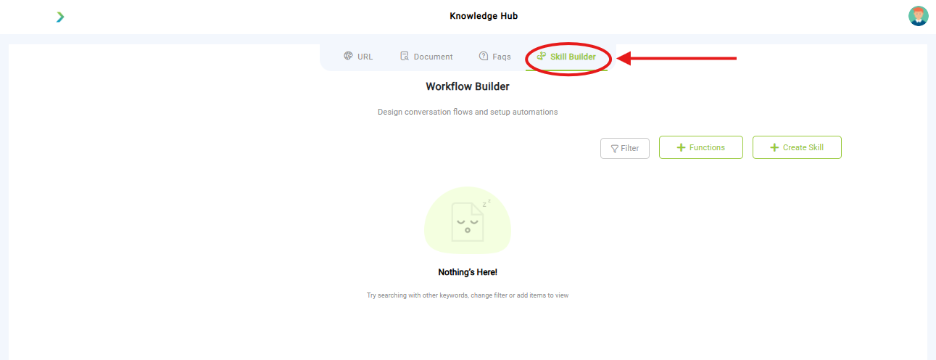
What you see:
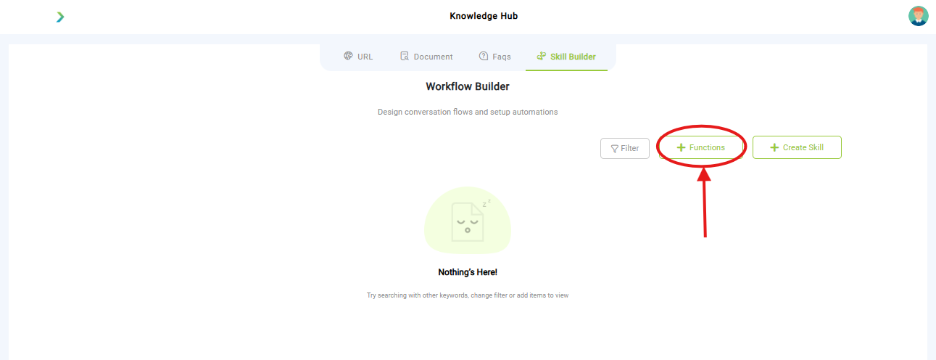
- Functions: Add predefined or custom functions that the chatbot can execute.
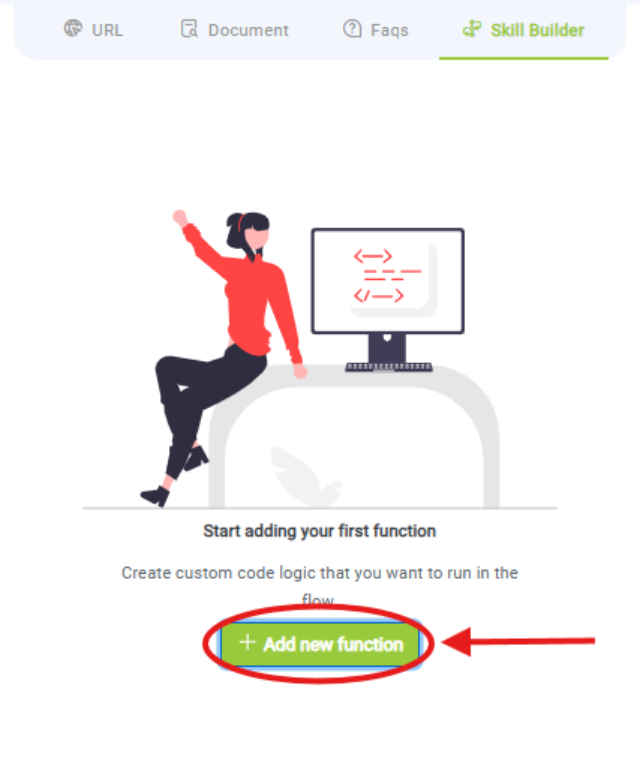
- Locate and click the green button labeled “+ Add new function”
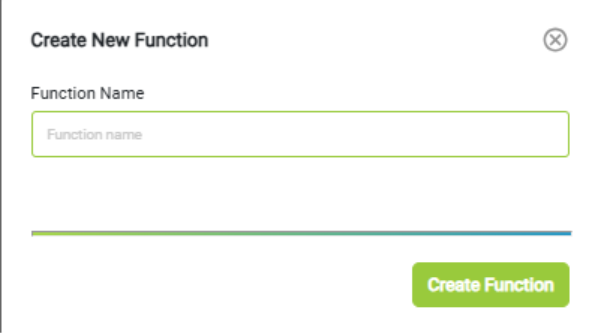
- Action Button:
- Label: Create Function
- Purpose: Confirms the function name and proceeds to the function editor where logic can be defined.
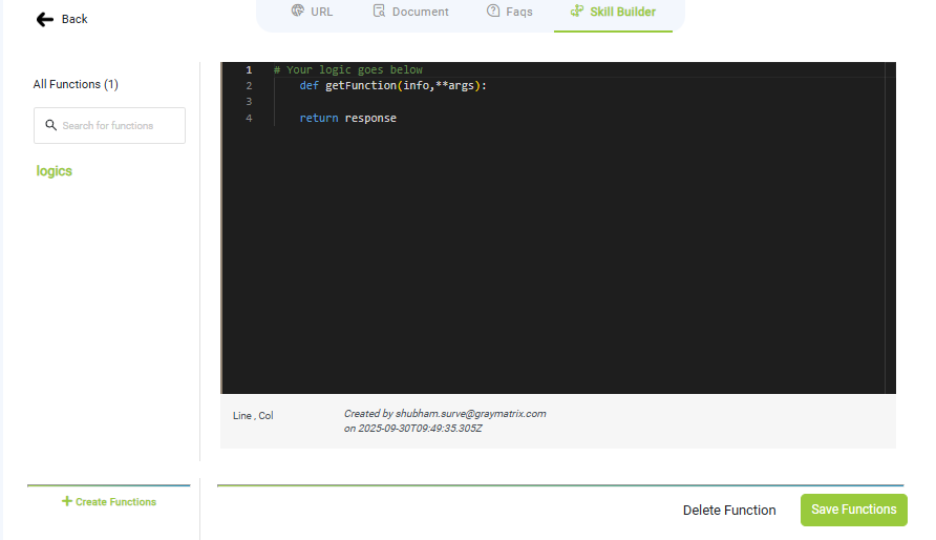
- Function Editor
- Purpose: Write and manage custom Python functions for chatbot workflows.
- Key Elements:
- Sidebar: Navigate back, view all functions, and search.
- Code Editor: Dark-themed area with a starter template:
- Metadata: Shows creator and timestamp.
- Buttons:
- Delete Function: Remove the current function.
- Save Functions: Save your code.
- Tip: Use info and args to handle inputs. Always return a valid response.
- Note: Functions must be written in Python only.
- The editor supports Python syntax and structure. Other programming languages are not supported in this environment.
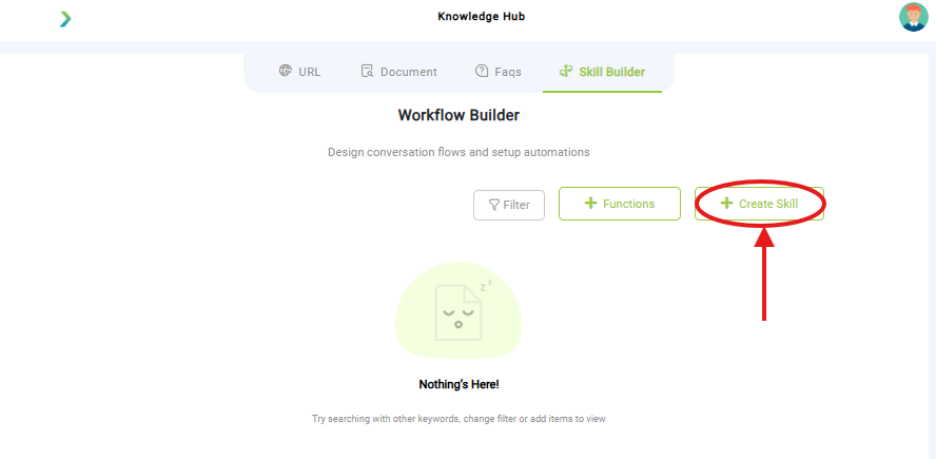
- Create Skill: Build new conversational skills or automation logic for the chatbot
- Purpose: Define a new skill for your chatbot workflow by specifying its name and prompt.
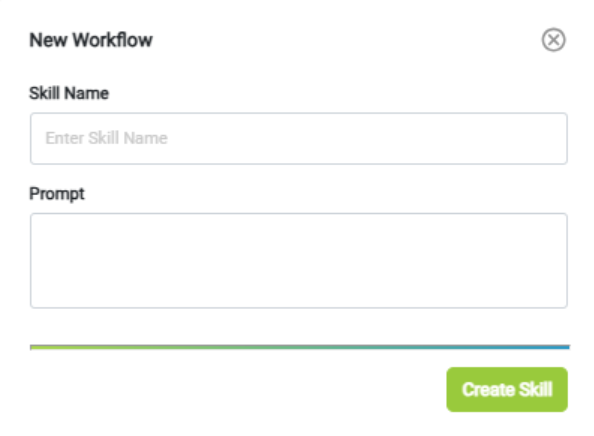
- Key Elements:
- Skill Name: Input field to name the skill.
- Prompt: Input field to describe the skill’s behavior or trigger.
- Create Skill Button:
- Label: Create Skill
- Action: Saves and adds the new skill to your workflow.
Tip: Use clear, action-oriented names and prompts to make skills easy to manage and reuse.
- Purpose: Design and visualize chatbot conversation flows using nodes.
- Key Elements:
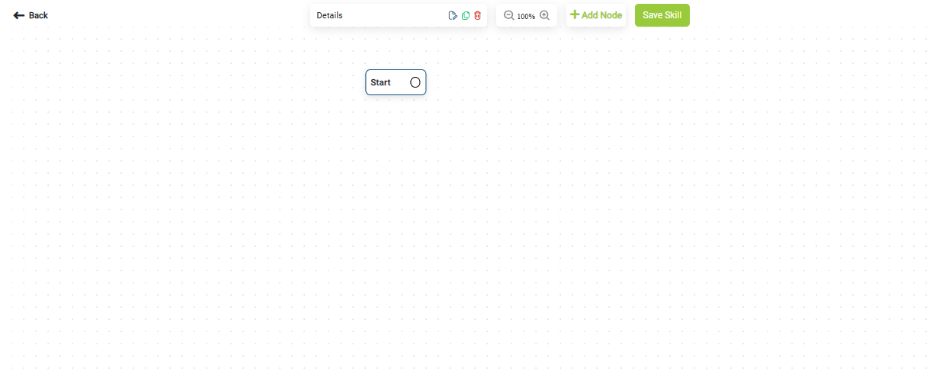
- Start Node: Initial point of the flow.
- Toolbar Buttons:
- Details: View or edit node properties.
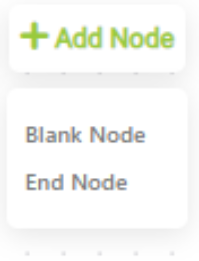
- Add Node: Insert new steps like messages, questions, or actions.
- Save Skill: Save the entire flow.
- Navigation:
- Back: Return to the previous screen.
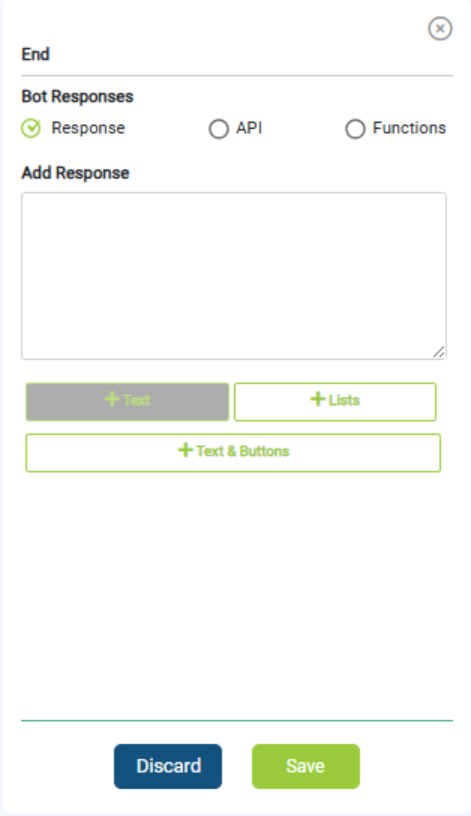
Key Elements:
- Bot Responses Options:
-
- Response (selected): Add static replies.
-
- API: Trigger external API calls.
-
- Functions: Execute custom logic.
- Add Response Area:
- Input field for response content.
- Buttons:
- + Text: Add plain text.
- + Lists: Add list-style responses.
- + Text & Buttons: Combine text with interactive buttons.
- Action Buttons:
- Discard: Cancel changes.
- Save: Save the configured response.
Why it matters:
- Skill Builder creates guided flows beyond FAQs.
- Enables advanced use cases (form filling, lead capture, service requests).
What you need before this step:
- Defined process flow (what you want the bot to ask and capture).
Outcome after action:
- Complex conversation workflows ready to deploy.
Best practice:
- Keep flows short and user-friendly.
- Use API calls only when necessary.