
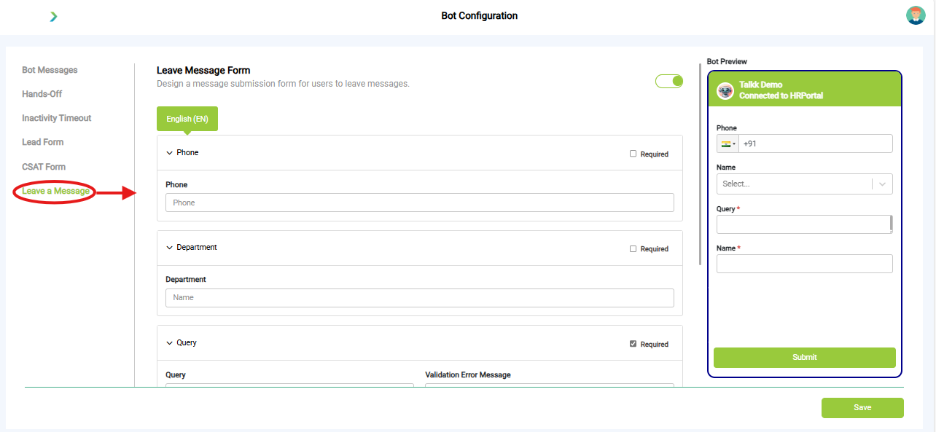
What you see:
- Key Configuration Options:
- Form Fields Available:
- Phone (can be marked as required)
- Department
- Query (required)
- Name
- Bot Preview Panel: Shows how the form will appear to users, including pre-filled country code and required field indicators.
Why it matters:
- Ensures users can always leave feedback when agents are offline.
What you need before this step:
- Decide fallback department/email for messages.
Outcome after action:
- Offline queries captured for follow-up.
Best practice:
- Always enable.
- Route to dedicated support email.
Troubleshooting
|
Symptom |
Why it happens |
What to do |
|
Fallback not triggering |
Misconfigured bot messages |
Recheck Bot Messages tab. |
|
Agent form not showing |
Disabled toggle |
Enable Hands-Off → Agent Form. |
|
Inactivity not closing chats |
Timer not set |
Add proper reminder + close values. |
|
Lead/CSAT forms missing |
Not saved/published |
Save and re-train bot. |
|
Leave a Message not visible |
Toggle off |
Switch ON at top of form. |
Best Practices
- Always configure all 6 tabs before going live.
- Use polite, brand-aligned fallback responses.
- Keep forms short and useful.
- Train and test after every change.
What’s Next?
- 🌐 Channel Integrations → Connect to Web, WhatsApp, Teams.
- 💬 Converse → Manage live chats.
- 📊 Insights → Track CSAT, missed chats.